You open the block editor, look at the right sidebar, and see a small panel that says “Status: Draft” with options like Pending Review, Private, and Scheduled. Most people click Publish and never think about it again — until a post goes live before it was supposed to, or an editor can’t tell which articles are waiting for review.
That panel is the WordPress post status system in action. It controls whether content is public, hidden, scheduled, or waiting for approval. In this guide you’ll learn what each of the 8 default statuses means, where they appear in the dashboard, how to change them, and how to add your own custom statuses for editorial workflows.
What Is a Post Status in WordPress?
A post status is a label WordPress attaches to every piece of content to describe its current state. Every post, page, and custom post type gets one, and it’s stored in the post_status column of the wp_posts database table. WordPress uses this label for two things: deciding who can see the content, and deciding where it shows up in queries and admin screens.
Statuses apply to all post types, not just blog posts — attachments and revisions rely on them too. When you run a query with WP_Query arguments, the post_status parameter is what filters results by this label, which is why understanding statuses matters even if you never open the database.
The 8 Default WordPress Post Statuses
WordPress ships with eight built-in statuses. Here they are, grouped by where they sit in a content’s life:
- Published — the post is live and visible to every visitor. This is what happens when you click Publish.
- Future — the post is scheduled to go live on a future date and time. WordPress flips it to Published automatically at the scheduled moment.
- Draft — an unfinished post that isn’t ready for the site. Only logged-in users can see it, and it won’t appear in any public query.
- Pending (shown as “Pending Review”) — the post is complete but waits for someone with publishing permission to approve it. Essential for multi-author sites.
- Private — published, but visible only to administrators and editors. Useful for internal notes and content you share with a closed team.
- Trash — the post was deleted. It sits in the trash for 30 days, then WordPress purges it permanently.
- Auto-draft — an empty placeholder WordPress creates when you open a new post editor. If you never save anything, it gets cleaned up automatically.
- Inherit — reserved for child items like attachments and revisions, which adopt the status of their parent post.
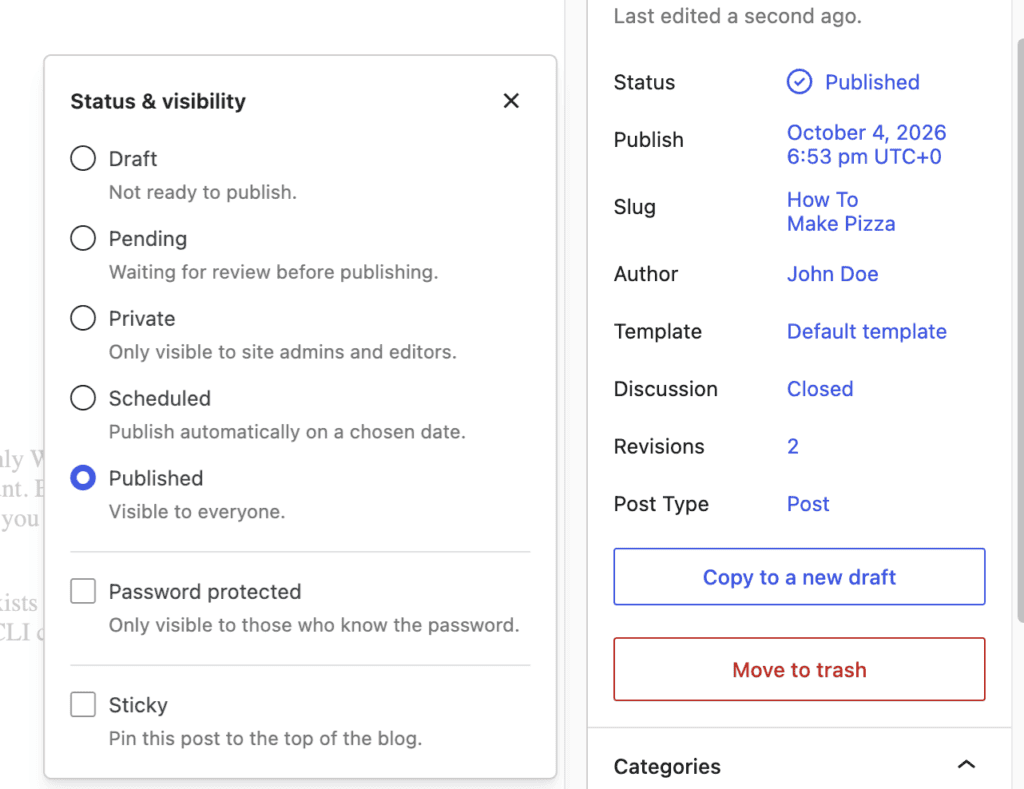
You won’t see all eight in the editor sidebar — WordPress shows six there and names some of them inconsistently. “Pending” becomes “Pending Review”, “Future” becomes “Scheduled”, and “Privately Published” stands in for the private status. Same database values, friendlier labels.
Click the image block above in the editor to upload the Status & visibility screenshot (with the Slug and Author values blurred).
Where You See Post Statuses in the Dashboard
Statuses aren’t confined to the editor. You’ll spot them in several places:
- Posts screen filters — the All Posts table has quick links (All, Published, Draft, Trash) that are just status filters.
- Status column — each row shows Draft, Pending, or Scheduled next to the title when the status isn’t Published.
- Quick Edit and Bulk Edit — change the status of one or many posts without opening the editor.
- Block editor sidebar — the Status & visibility panel, plus the Schedule option for future dates.
If a page doesn’t render the way you expect — a private page returning content through the_content filter for logged-in users only, for instance — its status is usually the reason.
How to Change a Post Status
In the Block Editor
- Open the post and find the Status & visibility panel in the right sidebar.
- Open the Status dropdown and pick Draft, Pending Review, or Private.
- Click Save (or Publish if you’re switching to a live status).
With WP-CLI
On the command line, wp post update takes a --post_status flag — handy for bulk fixes in scripts:
$ wp post update 123 --post_status=draft
Success: Updated post 123.
$ wp post list --post_status=pending --field=ID
128
131
Listing by status first, then updating, is the pattern for cleaning up stale content. You can verify accounts and content programmatically the same way — for user records, see the wp user exists check.
How to Create a Custom Post Status
Editorial teams often need more granular states — Pitch, In Progress, Fact Check, Archived. WordPress has supported custom statuses since version 3.0 through register_post_status():
function my_archived_status() {
    register_post_status( 'archived', array(
        'label'                     => _x( 'Archived', 'post' ),
        'public'                    => false,
        'exclude_from_search'       => true,
        'show_in_admin_all_list'    => false,
        'show_in_admin_status_list' => true,
        'label_count'               => _n_noop(
            'Archived (%s)',
            'Archived (%s)'
        ),
    ) );
}
add_action( 'init', 'my_archived_status' );
Tip:
register_post_status()registers the status but does not add it to the block editor’s status dropdown — the UI hasn’t caught up since 2010. For editor support and full workflows, use plugins like Edit Flow or PublishPress Statuses instead of hand-rolling the interface.
Once registered, the status works everywhere else: it’s queryable via get_posts() with post_status, and it appears in the admin status counts thanks to label_count.
FAQs About WordPress Post Status
How many default post statuses does WordPress have?
Eight: Published, Future, Draft, Pending, Private, Trash, Auto-draft, and Inherit. The editor sidebar only exposes a subset of them, which is why many people never see auto-draft or inherit.
What’s the difference between Draft and Pending Review?
A draft is still being written. Pending Review means the author considers the post complete and hands it to someone with publishing rights. Drafts belong to the writing stage; pending belongs to the editorial stage.
Can visitors see private posts?
No. Private posts are visible only to logged-in users at the administrator or editor level. Visitors and subscribers get a 404, not a login prompt.
WooCommerce products work the same way — a private product stays out of public view but still shows up in your own shop page when you are logged in as admin. If that bothers you, here is how to hide private products from the WooCommerce shop page.
How long do posts stay in the trash?
30 days by default. WordPress deletes trashed posts permanently after that. You can change the interval with the EMPTY_TRASH_DAYS constant, or set it to 0 to disable the trash entirely.
Do custom post statuses work with the block editor?
Not out of the box. Core registers the status in the database and admin lists, but the block editor dropdown still only offers the default statuses. Plugins like PublishPress Statuses or Edit Flow add the missing UI.
Conclusion
The WordPress post status system is a small feature with a big job: eight labels that control everything from public visibility to editorial handoffs. Know the difference between Draft and Pending, remember that Scheduled posts are really “future” in the database, and register custom statuses only when a real workflow demands them.
Need a custom editorial workflow, scheduled content automation, or help cleaning up a messy content library? Hire an experienced WordPress developer to set it up — or reach out to me directly and tell me what you’re building.