You set a product’s visibility to Private in WooCommerce, expecting it to disappear from your store. Then you open the shop page while logged in — and there it is, in the product grid, with a “Private:” prefix in front of its title. It also shows up on category pages and every other product loop.
That’s what this guide covers: why WooCommerce private products appear on the shop page for logged-in users, and how to hide private products from the shop page with one small PHP snippet — plus where to paste it safely and what changes once it’s active.
Why Private Products Show In Your Shop
In WooCommerce, Private is a WordPress content status, not a catalog setting. You’ll find it in the Publish box when editing a product. Store owners use it to keep items out of public view — samples for manual invoicing, B2B-only items, or products being prepared for launch.
Here’s the confusing part: WordPress never shows private content to guests. But if you’re logged in as an administrator or shop manager — any role with the edit_private_products capability — WordPress deliberately renders private content for you, including on the shop page. It even prefixes the title with “Private:”. As I explain in my guide to WordPress post statuses, the Private status was designed for internal notes, not for a polished storefront preview.
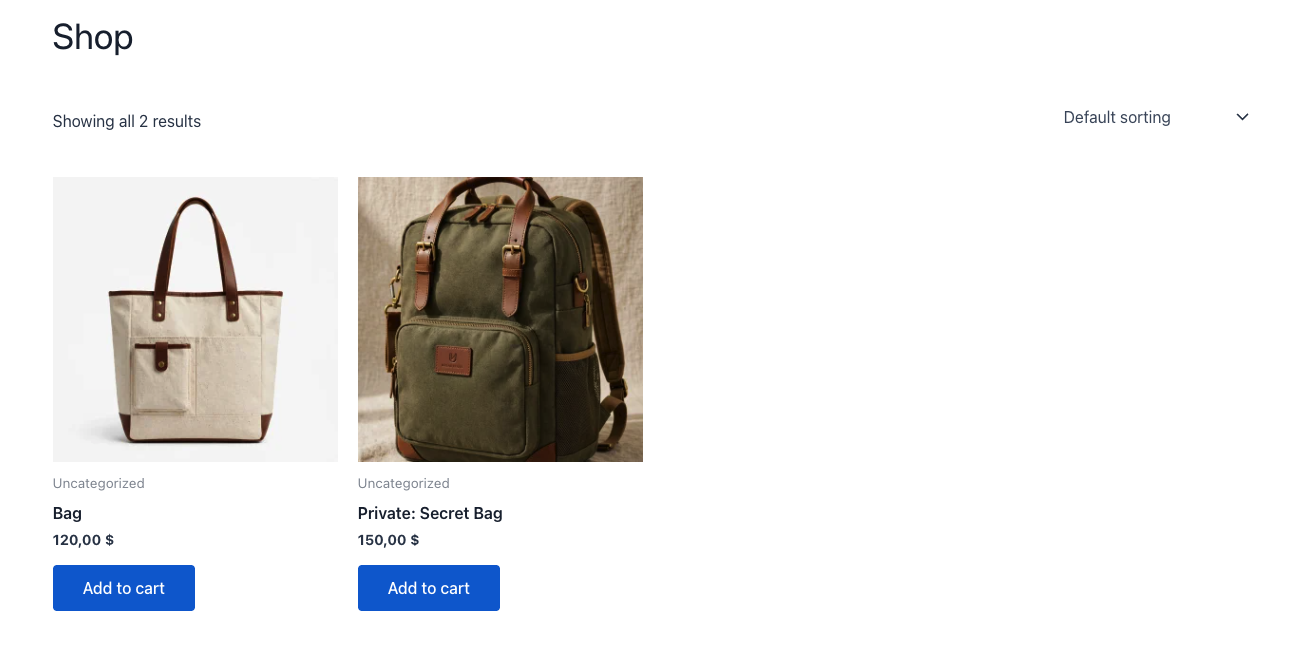
The goal is simple: keep the product private in the database, but stop it from polluting the shop and category pages — even when you’re logged in. You can always manage private products from the WordPress admin instead.
The PHP Snippet That Hides Private Products
This snippet filters the SQL query WordPress builds for the frontend and removes anything with the private post status from the results:
<?php

/**
 * Hide private products from the shop, category and
 * product loop pages for logged-in users as well.
 */
add_filter( 'posts_where', 'andriy_hide_private_products_frontend' );

function andriy_hide_private_products_frontend( $where ) {

    if ( is_admin() ) {

        return $where;
    }

    global $wpdb;

    return " $where AND {$wpdb->posts}.post_status != 'private' ";
}
Where to Add the Code
- functions.php of a child theme — add the snippet at the end of the file. Only with a child theme: pasting into the parent theme means a theme update wipes it out.
- A code snippets plugin — if you don’t use a child theme, install a plugin like WPCode and paste the snippet into a PHP block. Safest route for non-developers, and the code survives theme updates.
Never edit theme files on a live store without a backup — one typo in functions.php can take down the whole site.
How the Snippet Works
add_filter( 'posts_where', ... )hooks into every SQL query WordPress builds for fetching posts, including WooCommerce shop, category, and search queries.- The
is_admin()check exits early inside wp-admin, so your Products list and dashboard keep working as before. - The extra WHERE clause appends
post_status != 'private'. WordPress already excludes private content for guests and users who can’t edit it — this clause closes the last gap: logged-in admins browsing the frontend.
One caveat: the filter runs on all frontend queries, not just product queries. Private posts, pages, and custom post types also disappear from loops for logged-in users. On a shop site that’s usually what you want — but if you run a members-only private blog alongside your store, you’d need to scope the filter to product queries only.
Tip: the snippet only changes what appears in loops. It doesn’t touch product visibility settings, so you can remove it at any time and your private products behave exactly as before.
What Changes After Adding the Snippet
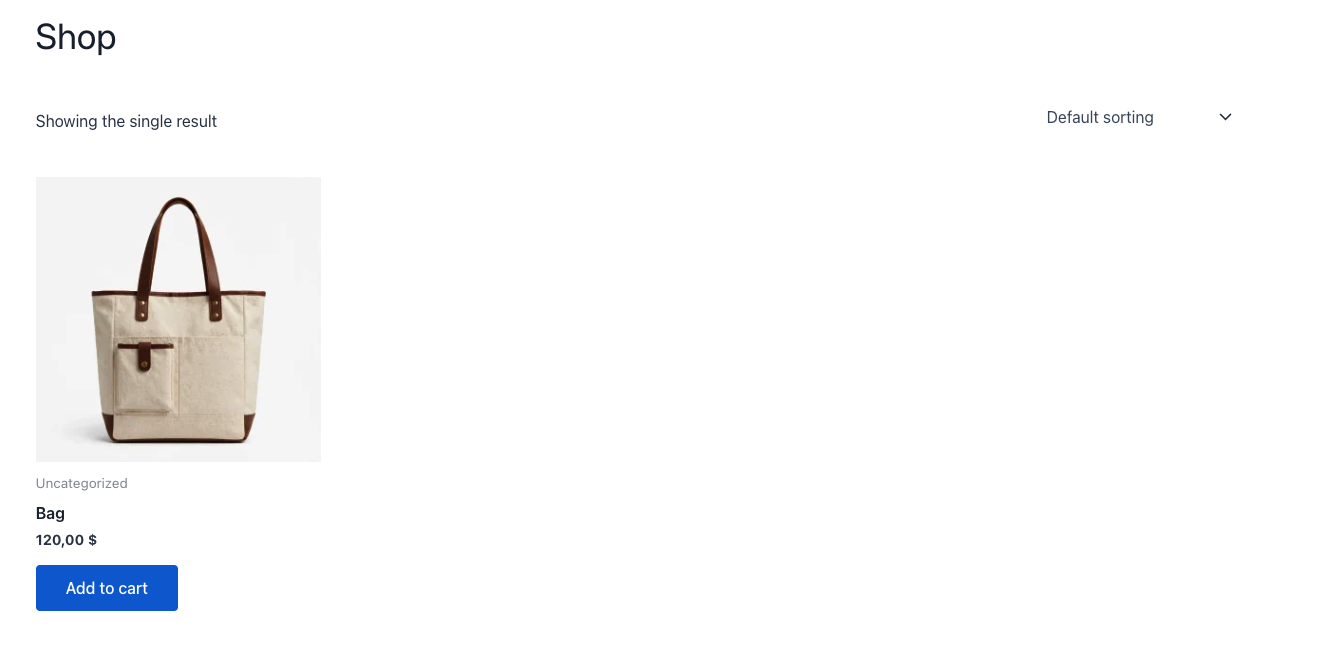
- The shop page matches what customers see. The result count updates too — in my test store it went from “Showing all 2 results” to “Showing the single result”.
- All product loops are clean. Category, tag, and related-product listings no longer include private items.
- wp-admin is untouched. You can still edit private products from Products → All Products.
- Direct links still work for you. As an admin you can still open a private product by its URL — handy for previews. Guests already get a 404, and the snippet doesn’t change that.
If your store uses page caching, clear the cache after adding the snippet — otherwise the shop page may keep serving old HTML and you’ll think the code didn’t work when it did.
No-Code Alternatives
- WPCode (Insert Headers and Footers) — paste the same PHP snippet without touching functions.php, with a built-in safety net that disables it if it causes an error.
- Visibility plugins — tools like WooCommerce Protected Categories let you password-protect categories or restrict them by user role. Different use case though: showing different catalogs to customer groups, not hiding internal items from yourself.
- Draft status instead of Private — if a product simply isn’t ready yet, “Draft” already keeps it hidden from everyone on the frontend. Use “Private” only when the product must stay live in the database for internal workflows like manual invoicing.
FAQs About Hiding Private Products
What are private products in WooCommerce?
A private product has the WordPress “Private” post status, set in the Publish box on the product edit screen. It stays in your catalog but is excluded from public listing pages and search. Only users who can edit private content can see it.
Can customers see private products on the shop page?
No. Guests never see private products — WordPress filters them out automatically. The issue only affects logged-in users with editing capabilities, which is why store owners are surprised to spot their own “hidden” products while logged in.
Does the snippet also hide private posts and pages?
Yes. Because posts_where applies to all frontend queries, private posts, pages, and custom post types are hidden from loops too. On most shop sites that’s a bonus, but keep it in mind if you publish private content for specific user roles.
Can I still open a private product by its direct link?
Yes, while logged in with the right capabilities. The snippet only affects listing pages — the single product page still loads for admins, which is handy for previewing before going live. For guests, direct links return a 404, as before.
Do I need to clear the cache after adding the code?
Usually yes. Page caching can keep serving the old shop page HTML after the snippet is active. Clear your caching plugin’s cache — and any CDN cache — before testing the result.
Conclusion
Private products are handy, but the way WordPress renders them for logged-in users makes it hard to preview your store as customers see it. With the small snippet above — added to your child theme’s functions.php or through WPCode — private products disappear from the shop page and every other product loop, while staying fully manageable in wp-admin.
If you’d rather have a WooCommerce expert handle customizations like this, check out my WooCommerce development services or reach out to me directly via the application form. And if you’re testing changes on a live store, my guide on WooCommerce test mode shows how to do it without touching real payments.