- What Is the woocommerce_single_product_summary Hook?
- Where the Hook Fires in the Template
- Default Callbacks and Priorities
- How to Remove an Element
- How to Reorder Elements
- How to Add Custom Content
- Common Mistakes to Avoid
- FAQs About woocommerce_single_product_summary
- Where should I put my hook snippets?
- Why does my remove_action not work?
- Can I use this hook with page builders like Elementor?
- What is the difference between a hook and a template override?
- Does this hook affect the shop page or cart?
- Conclusion
You open your product page and something is off: the short description sits above the price, the SKU crowds the add to cart button, and you want a trust badge right under the title. Editing the HTML sounds impossible — because it is. WooCommerce does not render the product page from one tidy template file; it assembles it from a stack of PHP callbacks fired in order.
That stack is controlled by one action hook: woocommerce_single_product_summary. Everything in the right-hand summary column — title, rating, price, short description, add to cart form, product meta, sharing links — runs through it. In this guide you will learn what the hook does, which callbacks fire at which priority, and how to remove, reorder, or extend them with a few lines of code.
What Is the woocommerce_single_product_summary Hook?
woocommerce_single_product_summary is a WordPress action hook that WooCommerce fires inside the summary column of a single product page. It is not a template file — it is an empty slot where WooCommerce plugs in smaller functions. Each function prints one piece of the page: the title, the price, the add to cart form, and so on.
Because it is a standard WordPress action, you interact with it through add_action() and remove_action(). You never edit WooCommerce core files. You attach your own callback at a chosen priority, or detach a built-in one, and the page changes accordingly. The same pattern works on every WooCommerce page — the hooks for the thank-you page, for example, are covered in the WooCommerce order received page guide.
Where the Hook Fires in the Template
The hook is called from content-single-product.php, one of the WooCommerce template files. The relevant part looks like this:
<div class="summary entry-summary">
    <?php
    /**
     * Hook: woocommerce_single_product_summary.
     *
     * @hooked woocommerce_template_single_title - 5
     * @hooked woocommerce_template_single_price - 10
     * @hooked woocommerce_template_single_add_to_cart - 30
     */    do_action( 'woocommerce_single_product_summary' );
    ?>
</div>
Notice the structure: the template does not print the title or the price itself. It only fires the action. WooCommerce attaches the printing functions to that action in includes/wc-template-hooks.php, which loads on every request. Priority numbers decide the order — lower numbers run first. Two callbacks at the same priority run in the order they were added.
One structural note: the product gallery, sale flash, tabs, upsells, and related products live in other hooks (woocommerce_before_single_product_summary and woocommerce_after_single_product_summary). If your change targets the image gallery or the tabs, this is the wrong hook — use those neighboring actions instead.
Default Callbacks and Priorities
WooCommerce attaches seven visible callbacks (plus one invisible) to the hook out of the box:
| Priority | Callback | What it prints |
|---|---|---|
| 5 | woocommerce_template_single_title | Product title |
| 10 | woocommerce_template_single_rating | Star rating |
| 10 | woocommerce_template_single_price | Price range |
| 20 | woocommerce_template_single_excerpt | Short description |
| 30 | woocommerce_template_single_add_to_cart | Add to cart form |
| 40 | woocommerce_template_single_meta | SKU, categories, tags |
| 50 | woocommerce_template_single_sharing | Share links |
| 60 | WC_Structured_Data::generate_product_data() | Schema.org product markup |
Keep this table open — every customization below is a variation of “detach a row, reattach it somewhere else.”
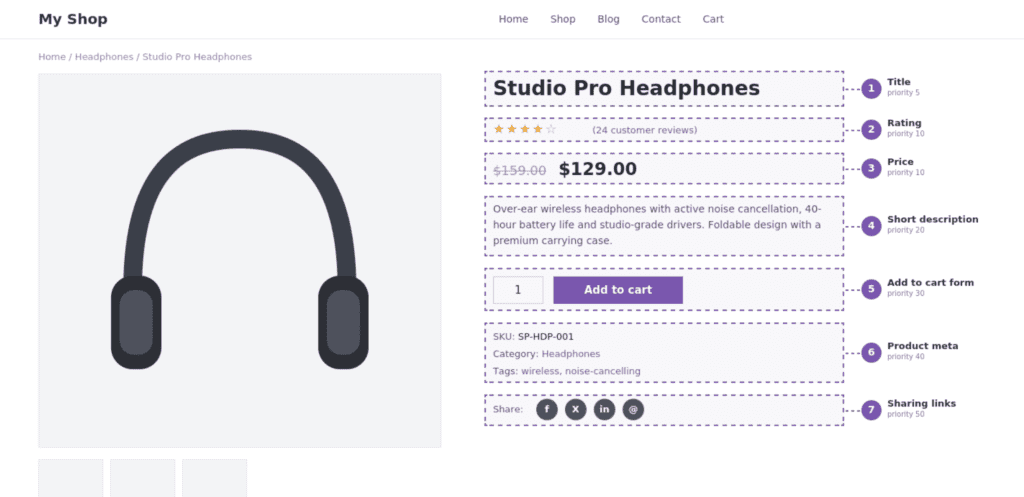
WooCommerce single product page front end with the summary column elements labeled in order: title, rating, price, short description, add to cart form, product meta, sharing links.
How to Remove an Element
Removing an element takes one line. The callback name and its priority must match the table above — pass the wrong priority and remove_action() silently does nothing.
Example: drop the short description from the product page:
remove_action( 'woocommerce_single_product_summary', 'woocommerce_template_single_excerpt', 20 );Other common removals:
// Hide SKU, categories and tags.
remove_action( 'woocommerce_single_product_summary', 'woocommerce_template_single_meta', 40 );

// Hide the share links.
remove_action( 'woocommerce_single_product_summary', 'woocommerce_template_single_sharing', 50 );

// Hide the star rating.
remove_action( 'woocommerce_single_product_summary', 'woocommerce_template_single_rating', 10 );
All snippets go into your child theme’s functions.php or into a snippets plugin if you prefer not to touch theme files.
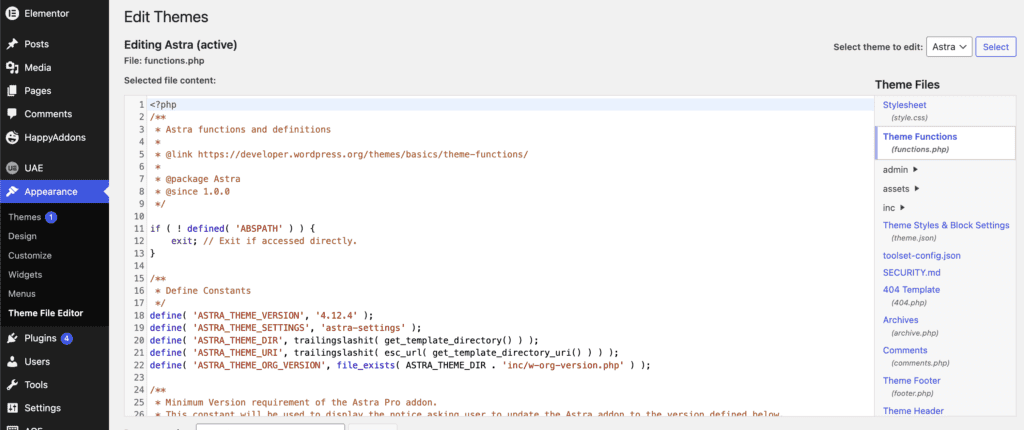
Child theme functions.php open in Appearance → Theme File Editor, with a remove_action snippet added at the bottom of the file.
How to Reorder Elements
Reordering is removal plus re-adding at a new priority. To show the price above the title (priority 5 is the title), detach the price from priority 10 and reattach it earlier:
remove_action( 'woocommerce_single_product_summary', 'woocommerce_template_single_price', 10 );
add_action( 'woocommerce_single_product_summary', 'woocommerce_template_single_price', 3 );
To move the short description below the add to cart button:
remove_action( 'woocommerce_single_product_summary', 'woocommerce_template_single_excerpt', 20 );
add_action( 'woocommerce_single_product_summary', 'woocommerce_template_single_excerpt', 35 );
Both lines must stay together — remove without re-add deletes the element, re-add without remove prints it twice. Where exactly should your new priority land? Use any number between two existing priorities: 25 sits between the short description (20) and add to cart (30); 55 sits between sharing (50) and schema markup (60).
How to Add Custom Content
New content is a plain add_action() with your own callback. This snippet prints a promo badge between the short description (20) and the add to cart form (30):
add_action( 'woocommerce_single_product_summary', 'my_promo_badge', 25 );

function my_promo_badge() {
    global $product;

    if ( $product && $product->is_on_sale() ) {
        echo '<span class="promo-badge">Today only: 20% off</span>';
    }
}
A few practical notes:
- Use
global $productwhen you need product data — price, stock status, attributes — inside your callback. - Escape output with
esc_html()andesc_url()whenever the value comes from user input. - Wrap in a condition if the content should only appear on sale items, out-of-stock items, or a specific category.
- Style with your own class — the hook outputs inside the summary column, so existing layout CSS applies automatically.
Common Mistakes to Avoid
- Editing plugin files directly. The files under
plugins/woocommerce/templates/are overwritten on every WooCommerce update. If you truly need markup changes, copy the template intoyourtheme/woocommerce/and edit the copy. For order, presence, or absence of elements, hooks are always the safer route. - Putting snippets in the parent theme. A parent theme update wipes your changes. Use a child theme or a snippets plugin.
- Wrong priority in
remove_action(). The default price callback is registered at 10. Passing 5 or omitting it inconsistently leaves the element in place. - Forgetting the cache. Page caching plugins serve stale HTML — your hook change is live, but visitors still see the old page. Purge the cache after every edit.
- Expecting the hook to move the gallery or tabs. Images and sale flashes run on
woocommerce_before_single_product_summary; tabs, upsells, and related products run onwoocommerce_after_single_product_summary. - Code that runs everywhere.
woocommerce_single_product_summaryonly fires on single product pages, so callbacks attached to it are naturally scoped — but code infunctions.phpitself loads on every page, so keep heavy logic inside the callback.
FAQs About woocommerce_single_product_summary
Where should I put my hook snippets?
In your child theme’s functions.php, or in a code snippets plugin such as WPCode or Code Snippets. Never in the parent theme or in WooCommerce plugin files.
Why does my remove_action not work?
Almost always a priority mismatch. remove_action() must receive the same priority that was used when the callback was originally added — 20 for the short description, 10 for the price, 40 for the meta. Check the table above and match it exactly.
Can I use this hook with page builders like Elementor?
Yes. Elementor’s WooCommerce widgets replace parts of the default output, but hooks attached in PHP still fire. If a widget overrides a section entirely, remove the widget first, then attach your callback.
What is the difference between a hook and a template override?
A hook adds, removes, or reorders whole pieces of the page. A template override changes the HTML markup inside one piece — for example turning a <p> into a <span>. Hooks are update-safe; template overrides need to be re-checked after every WooCommerce release.
Does this hook affect the shop page or cart?
No. It fires only on single product pages. Shop loop items use woocommerce_after_shop_loop_item_title and related hooks instead.
Conclusion
The woocommerce_single_product_summary hook is the control panel for your product page’s summary column. With the default callback table in hand, removing an element is one line, reordering takes two, and adding your own content is a plain add_action() with a priority slot of your choosing. No template files, no plugin edits, no update anxiety.
The same hook logic scales across your whole store — from the order received page to checkout optimization. If you would rather spend your time selling than debugging priorities, hire an expert WooCommerce developer — or reach out to me directly and let’s fix your product page this week.