- What Is the WooCommerce Order Received Page?
- Change the Order Received Page URL
- Get the Order Received Page URL Programmatically
- Redirect Customers to a Custom Thank You Page
- Customize the Title and Thank You Message
- Add Content, Upsells and Conversion Tracking
- Order Received Page Template Files
- FAQs About the WooCommerce Order Received Page
- Conclusion
A customer just paid for their order, and WooCommerce silently drops them on a page many store owners never even look at. That page is your last chance to reassure the buyer, confirm the purchase, and squeeze extra value from every transaction.
That’s what the WooCommerce order received page — also known as the thank you page — is for. In this guide you’ll learn what this page is, how to change its URL, how to redirect customers to a custom page, how to personalize the title and message, and how to add upsells and conversion tracking with a few code snippets.
What Is the WooCommerce Order Received Page?
The order received page is the confirmation page every customer lands on immediately after completing checkout. Unlike your shop, cart, and checkout pages, it is not a page you can find under Pages in your WordPress dashboard — it is a virtual endpoint that WooCommerce generates on the fly.
By default its URL looks like this:
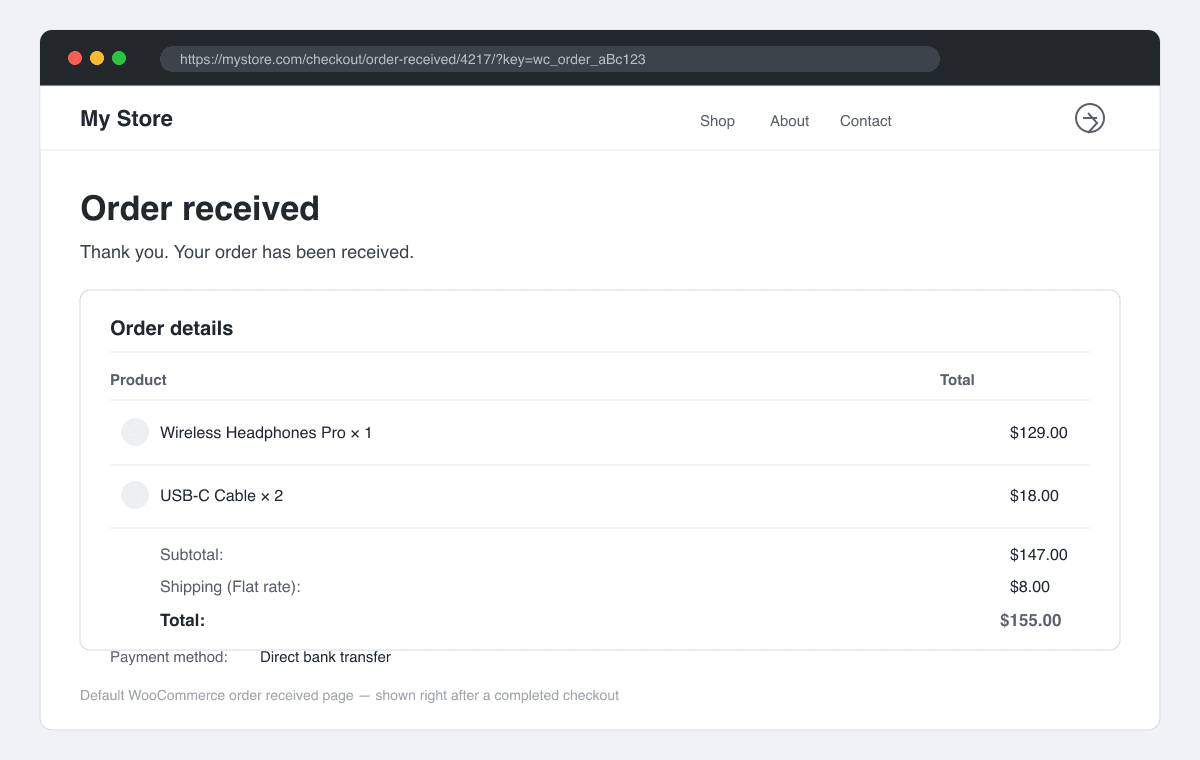
https://mystore.com/checkout/order-received/4217/?key=wc_order_aBc123
Two things are baked into that URL: 4217 is the order ID, and wc_order_aBc123 is a unique order key that lets guests view the page without logging in.
Out of the box, the page shows the “Order received” title, a short thank you message, the full order details table with purchased items, totals and payment method, plus the customer’s billing and shipping addresses.
Why care about this page? Because it is shown to every customer after every purchase:
- Reassurance — a clear confirmation reduces “did my order go through?” support requests.
- Conversion tracking — Google Ads and GA4 purchase events fire exactly here.
- Upsells and reviews — the customer is at peak goodwill, so it’s the perfect spot for offers or a feedback form.
- Next steps — payment instructions, download links, or account creation prompts belong here too.
Change the Order Received Page URL
The default URL has two parts you can rename: the checkout part — which is simply the slug of your checkout page and can be edited like any WordPress page — and the order-received part, which is a checkout endpoint.
To rename the endpoint:
- Go to WooCommerce → Settings → Advanced.
- Scroll down to the Page setup endpoints table.
- Change the “Order received” endpoint slug to something like
thank-you. - Click Save changes, then visit Settings → Permalinks and hit save once more to flush the rewrite rules.
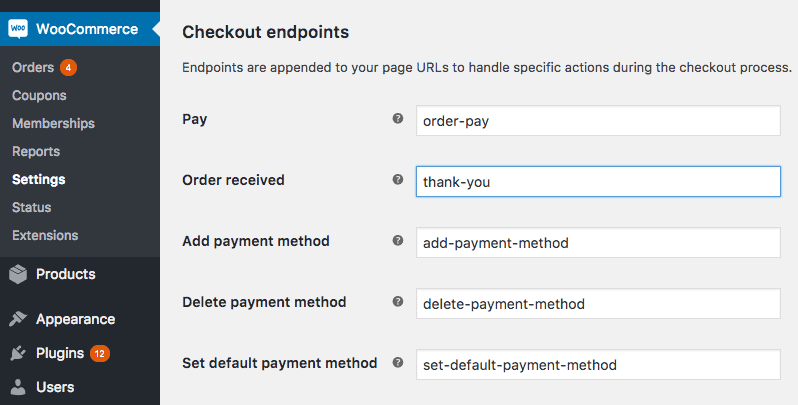
Your URLs will now read /checkout/thank-you/4217/?key=wc_order_aBc123. Note that renaming the endpoint does not affect how you detect this page in code — the is_wc_endpoint_url( 'order-received' ) function keeps working, because it checks the endpoint ID, not the slug.
Want a clean URL like mystore.com/thank-you without the /checkout/ prefix? Endpoints can’t do that — you need a real WordPress page and a redirect, which is exactly what the next sections cover.
Get the Order Received Page URL Programmatically
Because the URL contains the order ID and a unique key, you can’t hardcode it anywhere. Instead, build it from the order object:
$order = wc_get_order( 4217 );

echo $order->get_checkout_order_received_url();
// https://mystore.com/checkout/order-received/4217/?key=wc_order_aBc123
This is handy when you send custom order-related emails, build notifications into Slack, or want to add a “view your order” link anywhere in your own code. The generated URL always includes the order key, so even guests can open it.
Redirect Customers to a Custom Thank You Page
Sometimes the default endpoint page isn’t enough. You might want a URL that reads /thank-you, a different page per payment method — for example, dedicated bank transfer instructions — or a custom funnel step like a survey or lead magnet after checkout.
The cleanest solution is a redirect hooked into template_redirect, which fires on every page load before the template is rendered:
add_action( 'template_redirect', 'ah_redirect_order_received' );

function ah_redirect_order_received() {

    // bail out on any other page
    if ( ! is_wc_endpoint_url( 'order-received' ) || empty( $_GET['key'] ) ) {
        return;
    }

    $order_id = wc_get_order_id_by_order_key( wc_clean( $_GET['key'] ) );
    $order    = wc_get_order( $order_id );

    // send bank transfer customers to custom instructions
    if ( 'bacs' === $order->get_payment_method() ) {
        wp_safe_redirect( home_url( '/payment-instructions/' ) );
        exit;
    }
}
A few things worth knowing about this snippet:
- Order key check — the
$_GET['key']guard makes sure we don’t redirect guests who visit the endpoint without a valid key. - Gateway condition — swap
bacsforpaypal,stripeor any gateway slug to split customers by payment method. The same pattern works with product or category conditions via$order->get_items(). - wp_safe_redirect vs wp_redirect — the safe version only allows redirects inside your own domain, which is what you want here. Use
wp_redirect()only when sending customers to an external URL on purpose. - Where to put the code — a child theme’s
functions.phpor a code snippets plugin. Never edit a parent theme directly.
Customize the Title and Thank You Message
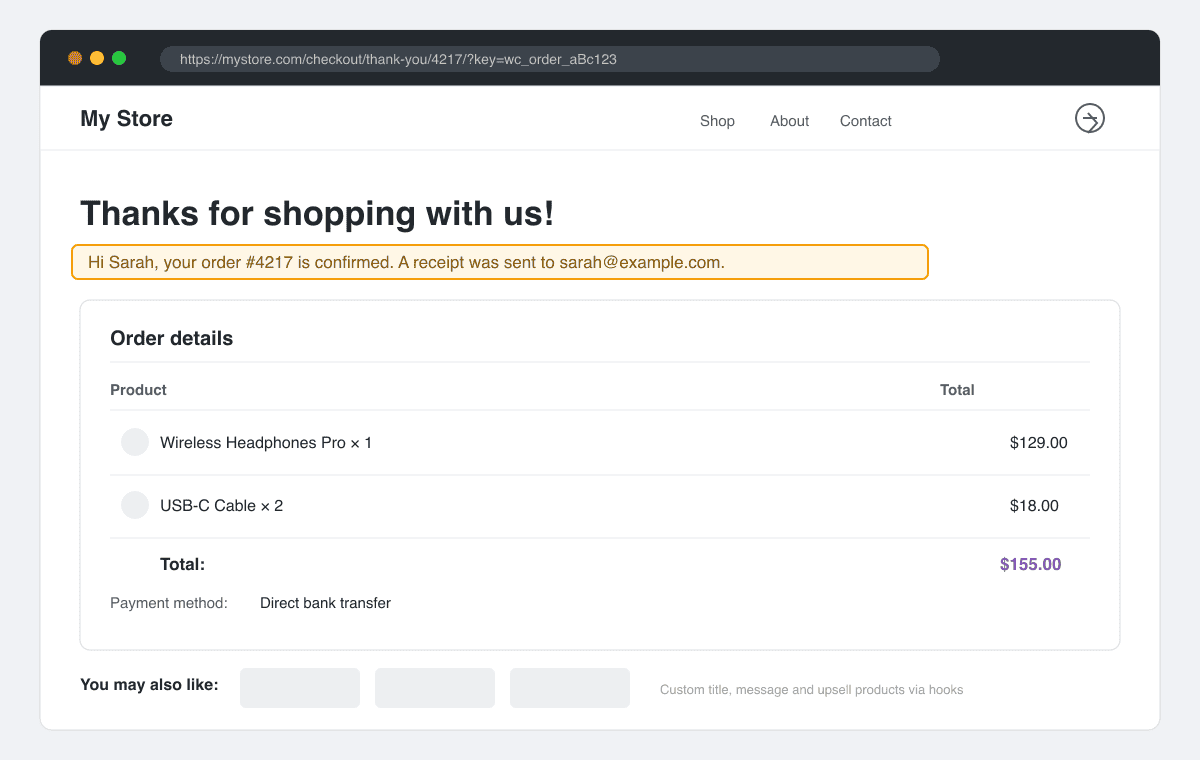
Sticking with the endpoint page but want better wording? Two hooks handle it: woocommerce_endpoint_order-received_title for the page title and woocommerce_thankyou_order_received_text for the message below it. The second one even passes the full WC_Order object, so you can personalize the text:
add_filter( 'woocommerce_endpoint_order-received_title', 'ah_order_received_title' );

function ah_order_received_title( $title ) {

    return 'Thanks for shopping with us!';
}

add_filter( 'woocommerce_thankyou_order_received_text', 'ah_order_received_text', 20, 2 );

function ah_order_received_text( $text, $order ) {

    return sprintf(
        'Hi %s, your order #%s is confirmed. A receipt was sent to %s.',
        $order->get_billing_first_name(),
        $order->get_order_number(),
        $order->get_billing_email()
    );
}
You may find older tutorials that change the title with the WordPress the_title filter. Avoid it — that filter runs on every post title across your whole site, menus included, while the dedicated endpoint hook only affects this page.
Add Content, Upsells and Conversion Tracking
The woocommerce_thankyou action fires right after the order details are printed, and receives the order ID. It’s the perfect place for a best-sellers row, a coupon, a feedback form, or your conversion tracking script:
add_action( 'woocommerce_thankyou', 'ah_thankyou_content', 20 );

function ah_thankyou_content( $order_id ) {

    // best sellers right below the order details
    echo do_shortcode( '[products limit="3" columns="3" best_selling="true"]' );

    $order = wc_get_order( $order_id );

    // fire the purchase event only once per order
    if ( $order && ! $order->get_meta( '_ah_tracked' ) ) {
        ?>
        <script>
            gtag('event', 'purchase', {
                'transaction_id': '<?php echo esc_js( $order->get_order_number() ); ?>',
                'value': <?php echo esc_js( $order->get_total() ); ?>,
                'currency': '<?php echo esc_js( $order->get_currency() ); ?>'
            });
        </script>
        <?php
        $order->update_meta_data( '_ah_tracked', 'yes' );
        $order->save();
    }
}
The _ah_tracked order meta is the important part. Customers refresh this page constantly — reloading it would otherwise fire duplicate purchase events and corrupt your conversion reports. WooCommerce also provides woocommerce_thankyou_{gateway} variants, like woocommerce_thankyou_paypal, if you want content to appear only for one payment method.
Tip: Test your changes without making a real purchase — grab an existing order in WooCommerce → Orders, open its edit screen, and look for the “Customer payment page” link under the order data panel. It opens the order received page with the correct key.
One more thing: orders paid with direct bank transfer or cheque stay “Pending payment” on this page. If you want such orders to move straight to “Completed” or “Processing” so the thank you page shows paid order data, see my guide on how to autocomplete WooCommerce orders.
Order Received Page Template Files
Hooks cover most customization, but not everything. For structural changes, WooCommerce renders this page from template files inside the plugin’s templates/checkout/ folder:
thankyou.php— the main page wrapper.order-details.php— the order details table.order-details-item.php— a single line item inside the table.order-details-customer.php— the billing and shipping addresses block.
Never edit these files inside the plugin — an update will wipe your changes. Instead, copy the file you need to your-theme/woocommerce/checkout/ and edit the copy. WooCommerce automatically prefers the theme version.
Keep template overrides to a minimum, though. Every overridden file is something you have to re-check after each WooCommerce release, while hook-based customizations usually survive updates untouched.
FAQs About the WooCommerce Order Received Page
Where is the order received page located in WordPress?
It doesn’t exist in Pages. It is a checkout endpoint that WooCommerce resolves on the fly, living at /checkout/order-received/ by default. You manage it under WooCommerce → Settings → Advanced, not under Pages.
Why does my order received page say “order not found”?
The page can only load an order when the URL contains a valid order ID and a matching order key. If the key is missing, stripped by a redirect plugin, or doesn’t belong to the order in the URL, the details won’t display.
Can I use a different thank you page for each payment method?
Yes. Add a template_redirect redirect like the one above and branch on $order->get_payment_method(), or use the woocommerce_thankyou_{gateway} action to print gateway-specific content without redirecting at all.
How do I view the page without placing a real order?
Either place a test order while WooCommerce test mode is on, or open any existing order in the admin and follow the “Customer payment page” link on the order edit screen.
Will Google index my order received pages?
No. Each URL requires a unique order key, so search engines have no way to reach these pages, and there is nothing indexable on them anyway. No noindex setup is needed.
Conclusion
The WooCommerce order received page is the final touchpoint of every sale, and it is far more customizable than most store owners realize. Renaming the endpoint takes a minute, a small template_redirect snippet gives you a fully custom thank you page, and two filters are enough for a personalized title and message.
Start with the message and title, add tracking with the once-only guard shown above, and only touch template files when hooks genuinely can’t do the job. If you’d rather have a WooCommerce developer build a conversion-optimized thank you page for you, check out my WooCommerce development services — or reach out to me directly via the application form.
When testing order flows after an HPOS migration, use this WooCommerce HPOS guide to check synchronization, compatibility, and order data integrity.