- What Is WooCommerce HPOS?
- How HPOS Stores Orders
- Benefits and Tradeoffs
- Check HPOS Compatibility Before Switching
- Enable HPOS Safely: Migration Steps
- 1. Back Up and Test on Staging
- 2. Enable Compatibility Mode
- 3. Confirm Sync and Switch Storage
- 4. Run Realistic Order Tests
- Verify and Troubleshoot HPOS
- Developer Checklist for HPOS-Compatible Code
- FAQs About WooCommerce HPOS
- Is HPOS required?
- Does HPOS make the whole site faster?
- Will my WooCommerce plugins work with HPOS?
- Does WooCommerce HPOS migration delete old orders?
- Can I switch back from HPOS?
- Conclusion
Before changing order storage, follow this WooCommerce checkout optimization guide to keep checkout testing focused on payment, shipping, tax, and order creation workflows.
HPOS works alongside broader WooCommerce speed optimization. Review caching, database queries, and hosting separately because HPOS focuses on order storage.
Order management slowing down as your WooCommerce store grows? The database may be doing extra work to find order details mixed in with posts, pages, products, and other metadata. WooCommerce HPOS changes that storage model, but switching without checking extensions and custom code can cause missing order data or broken workflows.
WooCommerce HPOS (High-Performance Order Storage) stores orders in dedicated tables rather than treating them as WordPress posts. This guide explains what changes, who benefits, how to check compatibility, and how to migrate with a rollback path.
What Is WooCommerce HPOS?
High-Performance Order Storage is WooCommerce’s order data store built specifically for ecommerce records. Before HPOS, an order was a custom post type saved in WordPress’s posts table, with many details stored as key-value rows in postmeta. HPOS separates core order data into purpose-built WooCommerce tables with fields and indexes suited to order queries.
New WooCommerce stores have used HPOS by default since WooCommerce 8.2. Existing stores are not silently migrated; their current storage choice remains until an administrator switches it. HPOS is about order storage, not a general page-speed toggle: it does not replace image optimization, caching, hosting improvements, or query tuning across the rest of a site.
How HPOS Stores Orders
HPOS stores order records in four main tables (the actual table prefix may differ from wp_):
wc_ordersstores core order properties such as status, customer, currency, total, and dates.wc_order_addressesholds billing and shipping address details.wc_order_operational_datastores operational fields used to process orders.wc_orders_metaholds additional order metadata.
Line items continue to use WooCommerce’s order-item tables. HPOS does not move every piece of store data into a single new table; it changes the data store for orders. The separation lets WooCommerce query order-specific fields without leaning as heavily on generic WordPress post and metadata tables.
WooCommerce’s CRUD layer provides the stable interface for reading and writing orders. Extensions using WooCommerce order APIs can work across storage modes; code that assumes every order is a shop_order post can fail when HPOS is authoritative.
Benefits and Tradeoffs
Dedicated tables and appropriate indexes can make order creation, searches, filtering, and administrative tasks more efficient, particularly as order volume rises. HPOS also separates order data from general content and can make order-focused backup and maintenance easier to reason about. Exact improvements depend on database size, hardware, plugins, query patterns, and traffic. Do not promise a fixed speed multiplier or expect every storefront request to become faster.
There are tradeoffs to plan for:
- Compatibility matters. Payment, subscription, booking, fulfillment, reporting, and custom extensions may access order data directly.
- Synchronization takes time. Moving a large order history may run as scheduled background batches.
- Compatibility mode duplicates data. It synchronizes records between HPOS and legacy posts storage to support integrations during transition, adding writes and storage.
- Direct SQL assumptions break. Custom reports or scripts querying
postsandpostmetafor orders may read stale or incomplete data after the switch.
Tip: Treat HPOS migration as a data-store change. Test order creation, editing, refunds, emails, exports, and connected services on staging before changing production.
Check HPOS Compatibility Before Switching
Start with the WooCommerce feature compatibility screen and inventory anything that touches orders. Check payment gateways, subscriptions, bookings, memberships, shipping and fulfillment, accounting exports, CRM integrations, reporting tools, and snippets in your theme or custom plugins. Update supported extensions and ask vendors about any unclear integration.
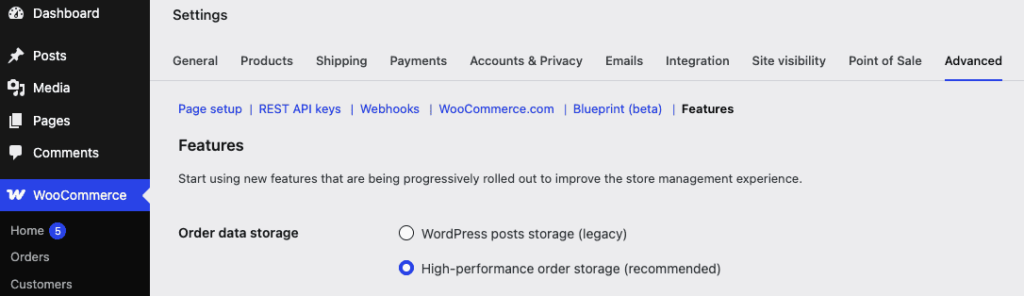
In WordPress admin, open WooCommerce > Settings > Advanced > Features. Review the order storage selector and the compatibility notices. WooCommerce can block the switch when an active extension declares incompatibility. A clean screen is useful, but it does not prove that unregistered custom code or external integrations behave correctly.
For custom code, search for direct order access patterns such as WP_Query with shop_order, get_posts(), get_post_meta() on order IDs, and direct SQL against posts tables. Replace order reads and writes with WooCommerce APIs. Also check admin hooks tied only to the old order screen ID.
Enable HPOS Safely: Migration Steps
1. Back Up and Test on Staging
Create a staging copy with current orders and the same active plugins, theme, and custom code. Take a restorable database and file backup before migration. Avoid testing only on an empty store: include representative orders, refunds, subscriptions, custom fields, and the extensions that process them.
2. Enable Compatibility Mode
On staging, go to WooCommerce > Settings > Advanced > Features and enable compatibility mode to synchronize orders between legacy WordPress storage and HPOS. Keep order-related custom post type extensions active throughout migration; some extensions maintain related records and should not be deactivated during the transition.
WooCommerce schedules background actions to copy pending records. Check WooCommerce > Status > Scheduled Actions for pending or failed synchronization jobs. Large stores may need time for batches to finish. Do not change the authoritative storage until synchronization completes.
3. Confirm Sync and Switch Storage
Confirm WooCommerce reports no pending orders to synchronize and investigate failed scheduled actions rather than assuming the background job finished. Then select High-performance order storage as the authoritative data store and save. Keep compatibility mode enabled during an observation period if integrations still need the legacy copy.
WooCommerce also documents the wp wc cot sync command for command-line synchronization. Use it only if WP-CLI is configured correctly for the site, and verify its output and the resulting sync status. Follow current WooCommerce documentation for command options and the direction of synchronization.
4. Run Realistic Order Tests
Test the full order lifecycle on staging: place a test order through each checkout path, process a payment, change status, add an order note, issue a refund, and confirm customer and administrator emails. Check exports and any integrations that receive order updates. Compare order totals, addresses, line items, tax, shipping, and metadata with known records.
After staging checks pass, plan production migration for a quiet period. Confirm recent backups, plugin compatibility, background processing, and a person responsible for monitoring checkout and orders. Repeat the same validation against live workflows after the switch.
Verify and Troubleshoot HPOS
After switching, look for failed scheduled actions, WooCommerce logs, checkout errors, missing order details, and integration failures. Compare a sample of new and historical orders with payment provider records. Watch order creation and admin search under normal traffic; one benchmark on a small test dataset will not predict your store’s live result.
If a plugin is incompatible, update it or contact its developer. If an integration depends on legacy order posts, you may need to keep compatibility mode active while it is fixed. To revert, WooCommerce requires the stores to be synchronized first: enable or retain compatibility mode, wait until synchronization completes, then select WordPress posts storage as authoritative. Confirm data consistency before disabling compatibility mode. Do not delete either set of tables manually.
Compatibility mode is a transition aid, not an optimization. Once all extensions and custom integrations support HPOS and the migration has been validated, you can disable it to stop maintaining the extra synchronized copy.
Developer Checklist for HPOS-Compatible Code
Use WooCommerce order objects and query APIs rather than treating orders as regular posts. For example:
<?php
$order = wc_get_order( $order_id );

if ( $order ) {
    $status = $order->get_status();
    $reference = $order->get_meta( '_external_reference', true );
}
For collections, use wc_get_orders() or WC_Order_Query. Update metadata through the order object, then save it:
<?php
$order = wc_get_order( $order_id );

if ( $order ) {
    $order->update_meta_data( '_external_reference', 'ABC-123' );
    $order->save();
}
Declare compatibility only after testing. WooCommerce extensions can declare HPOS support on before_woocommerce_init:
<?php
add_action( 'before_woocommerce_init', function() {
    if ( class_exists( \Automattic\WooCommerce\Utilities\FeaturesUtil::class ) ) {
        \Automattic\WooCommerce\Utilities\FeaturesUtil::declare_compatibility(
            'custom_order_tables',
            __FILE__,
            true
        );
    }
} );
Do not declare support just to remove a warning. Verify order creation, reads, metadata, admin screens, and supported WooCommerce versions first. If adding admin UI, account for the HPOS order screen and use WooCommerce’s screen and order APIs rather than relying only on post-type hooks.
FAQs About WooCommerce HPOS
Is HPOS required?
No. Existing stores can remain on legacy post storage. New WooCommerce installs use HPOS by default from version 8.2 onward, but migration is an administrator-controlled change for existing stores.
Does HPOS make the whole site faster?
No. It can improve order-related database operations, especially at scale, but does not directly optimize product pages, images, scripts, hosting, or unrelated database queries. Measure your own store before and after.
Will my WooCommerce plugins work with HPOS?
Many do, but order-related plugins and custom code need explicit compatibility checks. Review WooCommerce’s feature notices, vendor documentation, and staging tests rather than relying on assumptions.
Does WooCommerce HPOS migration delete old orders?
Migration synchronizes order data between storage systems; it does not mean you should manually remove legacy records. Keep compatibility mode during transition as needed and maintain a verified backup.
Can I switch back from HPOS?
Yes, after order stores are synchronized. Enable compatibility mode and wait for pending synchronization to finish before selecting legacy WordPress posts storage. Validate orders and integrations after reverting.
Conclusion
WooCommerce HPOS gives order records a dedicated data store designed for ecommerce workloads. It can make order management more efficient, but success depends on compatible extensions, reliable synchronization, and testing your actual workflows. Back up first, migrate on staging, and keep a clear rollback path before changing production.
Need help auditing custom WooCommerce code or planning a careful migration? Explore my WooCommerce development services or reach out to me directly.