
- Change Currency via Store Settings
- Navigate to Currency Options
- Select Currency and Formatting
- Save Your Changes
- Change Currency via Code
- Method 1: Child Theme functions.php
- Method 2: WP Code Plugin
- FAQs About Changing Currency in WooCommerce
- Can I change the currency symbol without a plugin?
- Does changing currency affect existing orders?
- Can I show multiple currencies at once?
- Does currency change affect payment gateways?
- Which method should I use — settings or code?
- Conclusion
Your WooCommerce store is showing prices in the wrong currency, or the symbol sits on the wrong side of the number, and customers are confused before they even reach the checkout fields. You do not need a developer for most of this — WooCommerce ships with currency controls built into its settings screen.
That is what this guide to change currency in WooCommerce covers: two practical methods, from the store settings dashboard to a PHP snippet for custom symbols and programmatic control. Pick the path that matches your comfort level.
Change Currency via Store Settings
The default method. No code, no plugins — every WooCommerce install has it. Four steps from dashboard to updated prices across product pages, cart, and checkout.
Navigate to Currency Options
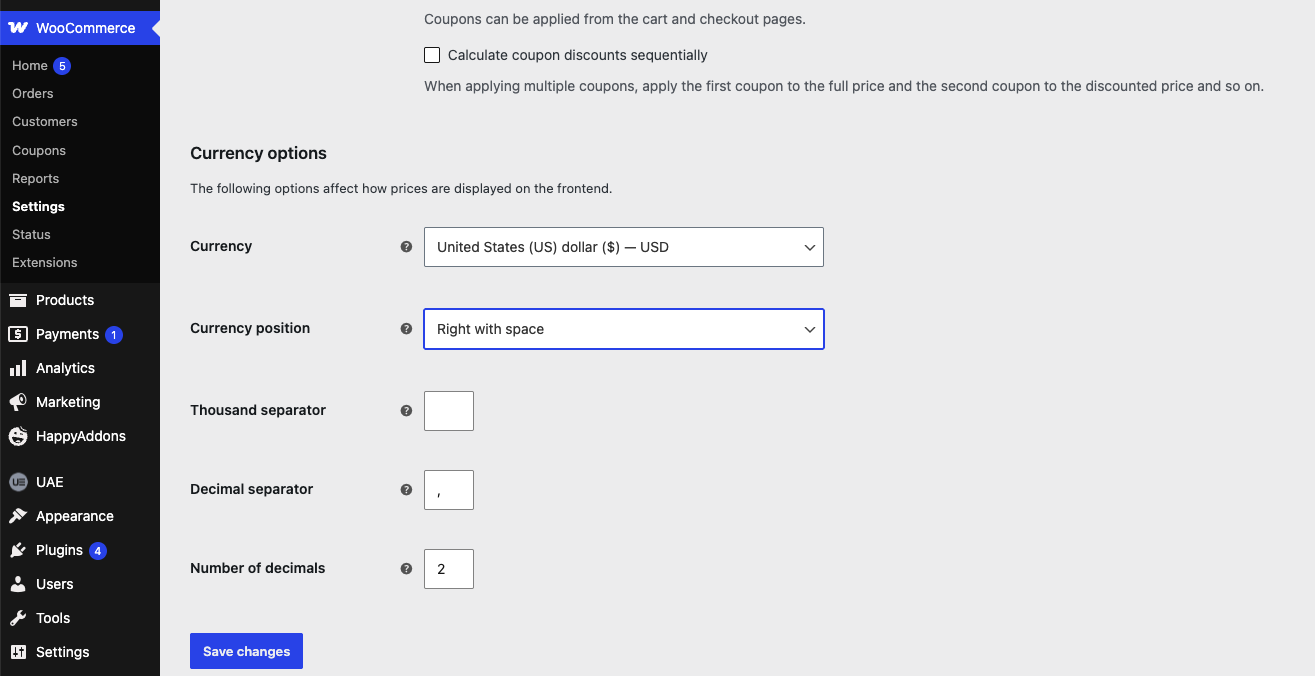
- Go to WooCommerce → Settings → General in your WordPress dashboard.
- Scroll down to the Currency options section. This is where the default currency settings live.
Select Currency and Formatting
Locate the Currency dropdown. Open it and pick the currency your store should charge in — British Pound, Euro, US dollar, or any of the dozens WooCommerce lists. Right below it, four formatting controls decide how that currency is rendered on the frontend:
- Currency position — where the symbol sits: Left ($10.00), Right (10.00$), Left with space ($ 10.00), or Right with space (10.00 $).
- Thousand separator — character splitting thousands in large numbers, typically a comma (1,000) or a period (1.000).
- Decimal separator — character dividing whole numbers from decimals, usually a period (10.50) or a comma (10,50).
- Number of decimals — decimal places shown; 2 gives $10.00, 0 gives $10.
Match these to regional conventions. US stores expect $1,234.56; German stores expect 1.234,56 €. Wrong separators make prices harder to read and the store less trustworthy.
Save Your Changes
- Scroll to the bottom of the page and click Save changes.
- Visit a product page, the cart, and checkout to confirm the new currency and formatting appear everywhere.
- If a caching plugin is active on your site, clear its cache — stale pages can keep showing the old currency for a while.
Tip: Completed orders keep the currency they were processed in — they are not retroactively converted. Product prices and new orders use the new currency, so double-check that current product prices still make sense in the new unit.
Change Currency via Code
Settings handle the store-wide default. Code is useful when you need a custom currency symbol (US$ instead of $, for example), want the currency managed in version control alongside your theme, or prefer not to touch the admin screen. Two safe ways to run the snippet:
Method 1: Child Theme functions.php
Never edit the parent theme’s functions.php — theme updates wipe your changes. Use a child theme. From the dashboard: Appearance → Theme File Editor, pick the child theme, open functions.php, scroll to the bottom, and add:
<?php

add_filter( 'woocommerce_currency', 'andriy_change_currency' );
function andriy_change_currency( $currency ) {
    return 'EUR';
}

add_filter( 'woocommerce_currency_symbol', 'andriy_custom_currency_symbol', 10, 2 );
function andriy_custom_currency_symbol( $currency_symbol, $currency ) {
    switch ( $currency ) {
        case 'EUR':
            $currency_symbol = '€';
            break;
    }
    return $currency_symbol;
}
The first filter forces the store currency code — replace ‘EUR’ with any ISO code (‘GBP’, ‘USD’, ‘AED’). The second overrides the displayed symbol for that currency. Save the file; prices update on the next page load, and your currency keeps the formatting options from Method 1.
If the Theme File Editor is hidden on your host, connect over FTP or the hosting file manager and edit the same file at wp-content/themes/your-child-theme/functions.php. Keep a backup of the file before editing.
Method 2: WP Code Plugin
Prefer not to touch theme files at all? Use a code snippets plugin. WP Code is the popular free option:
- Install and activate WP Code from Plugins → Add New.
- Go to Code Snippets → Add Snippet, choose Add Your Custom Code, and select PHP Snippet as the type.
- Paste the snippet from Method 1 (skip the <?php tag if the editor already provides it).
- Save and activate the snippet.
Snippets survive theme switches and sit inactive until you activate them — easier to toggle off than a functions.php edit. The tradeoff is one more plugin on the site. Either method produces the same result; pick based on how you prefer to manage site code. If you are already comfortable editing themes, the same filter pattern applies across WooCommerce — see how woocommerce_single_product_summary works for another example.
FAQs About Changing Currency in WooCommerce
Can I change the currency symbol without a plugin?
Yes. Add the woocommerce_currency_symbol filter to your child theme’s functions.php or a snippets plugin. It overrides the symbol globally on the frontend — no plugin required.
Does changing currency affect existing orders?
No. Completed orders keep the currency they were charged in. Product prices and future orders use the new currency, so review your pricing after the switch.
Can I show multiple currencies at once?
Not with core WooCommerce. Multi-currency switching — currency selectors, exchange rates, geolocation — needs an extension such as CURCY, YayCurrency, or FOX. The methods above set one store-wide currency.
Does currency change affect payment gateways?
Potentially. Stripe and PayPal support many currencies, but your account must accept the new one. Verify gateway support before going live, especially for less common currencies.
Which method should I use — settings or code?
Use store settings for a straightforward default-currency change. Use code when you need a custom symbol, a currency missing from the dropdown, or theme-managed configuration. Many stores start with settings and add a snippet later for the symbol only.
Conclusion
Changing currency in WooCommerce takes minutes: WooCommerce → Settings → General → Currency options, pick the currency, set position and separators, save. For custom symbols or code-managed setups, drop the woocommerce_currency filter into a child theme or WP Code snippet — same result, no admin screen required.
Need more than a currency swap — checkout customization, payment setup, or store tuning? Hire a WooCommerce developer — or reach out to me directly.